

Public Events are site-wide events that exist outside of any specific Space. They are visible to all community members and are ideal for community-wide announcements, meetups, or events that span multiple Spaces.
Enabling Public Events #
Step 1: Open Space Settings #
Navigate to the SpaceEvents dashboard and click the Settings tab, then select Public Events.
Your FluentCommunity Portal > Settings > SpaceEvents
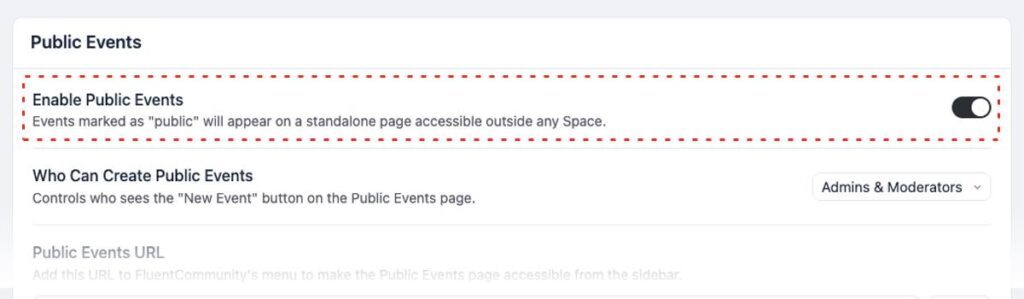
Step 2: Enable Public Events #
Toggle the Enable Public Events switch to on.
Step 3: Set permissions #
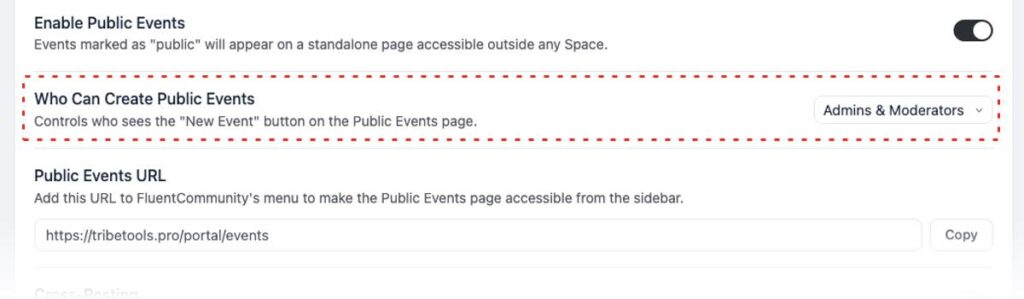
Choose who can create Public Events. Typically this is limited to site Admins and Moderators.
- Admins Only — Only site administrators and Space administrators can create events.
- Admins & Moderators — Administrators and Moderators can create events.
- Everyone — All Space members can create events.
Step 4: Save changes #
Click Save Changes to apply the settings.
Step 5: Add a link to the Public Events #
Copy the Public Events URL and navigate to Menu Settings.
Your FluentCommunity Portal > Settings > Menu Settings
Click Add New Link in the Group you wish the Public Events to appear. Refer to FluentCommunity’s Docs for help with Menu Settings.
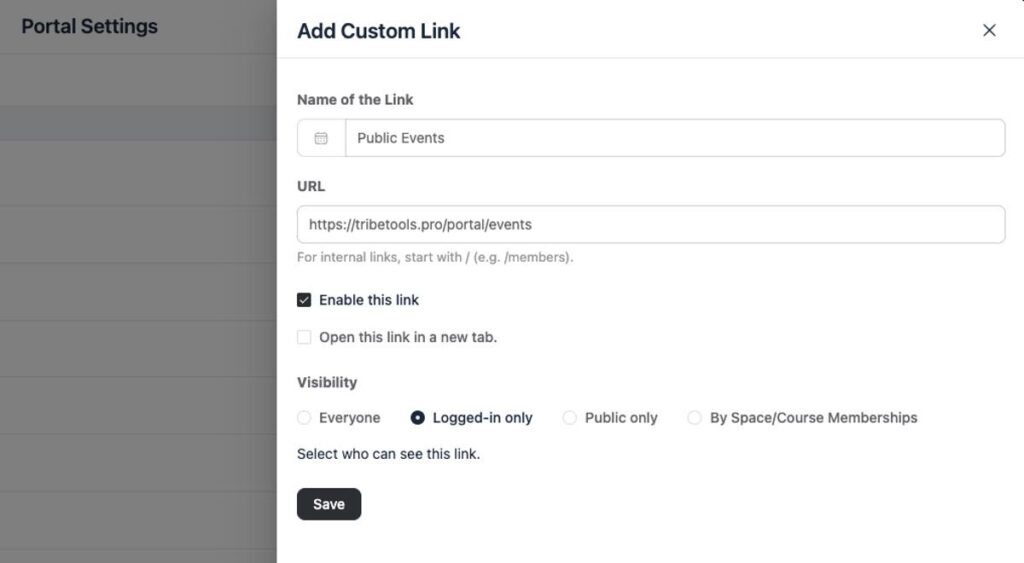
- Select an Icon – you can use one of the sample icons from the SpaceEvents settings.
- Enter the Name of the Link – e.g. Public Events.
- Paste the link in the URL field – https://yourwebsite.tld/portal/events
- Tick Enable this link, optionally tick Open this link in a new tab.
- Select the Visibility.
- Click Save.
The Public Events will now show on the main Portal.
You can also add a custom Link to Space Groups.
Your FluentCommunity Portal > Settings > Space Groups
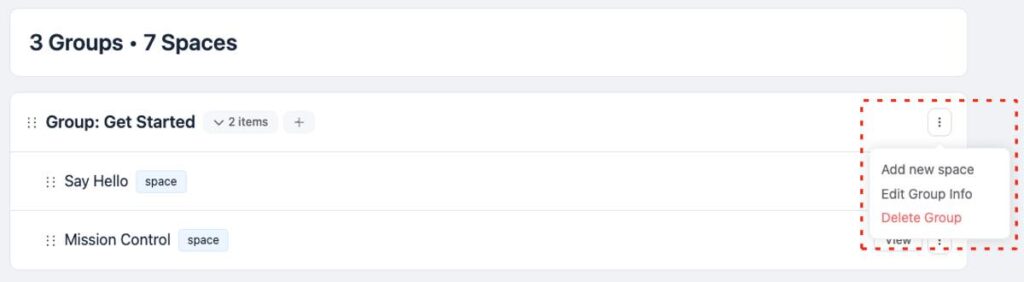
- Click Add new space from the 3 dots icon
- From the Choose a Space Type, select Link
- Select an Icon – you can use one of the sample icons from the SpaceEvents settings.
- Enter the Name of the Link – e.g. Public Events.
- Paste the link in the URL field – https://yourwebsite.tld/portal/events
- Optionally tick Open this link in a new tab.
- Confirm you have the correct Menu Group selected
- Select the Visibility.
- Click Save.
The Public Events will now show in the Space Group.


