

SpaceEvents requires FluentCommunity (free or Pro) to be installed and active on your WordPress site. If FluentCommunity is not detected, SpaceEvents will display a notice and deactivate itself.
1. Install via WordPress Admin #
Step 1: Download the plugin #
Download the SpaceEvents .zip file from your TribeTools account (login here).
Step 2: Upload to WordPress #
In your WordPress dashboard, navigate to Plugins > Add New > Upload Plugin. Select the .zip file and click Install Now.
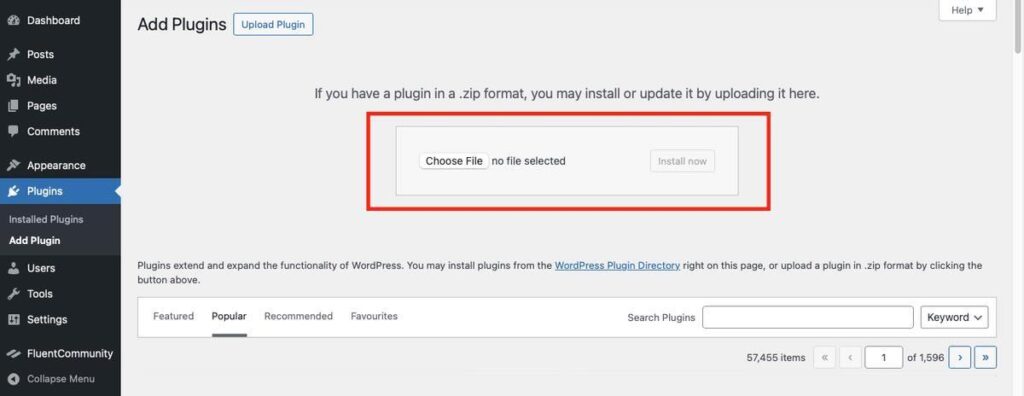
Step 3: Activate the plugin #
Once installed, click Activate Plugin. SpaceEvents will check for FluentCommunity and, if found, will be ready to configure.
2. Activating Your Licence #
A valid licence key is required to receive plugin updates and access support. You can activate your licence from the SpaceEvents dashboard.
Step 1: Open SpaceEvents settings #
In the FluentCommunity portal, navigate to the SpaceEvents dashboard and click the Licence tab.
FluentCommunity > SpaceEvents > Settings > Licence
Step 2: Enter your licence key #
Paste your licence key into the field provided and click Activate Licence.
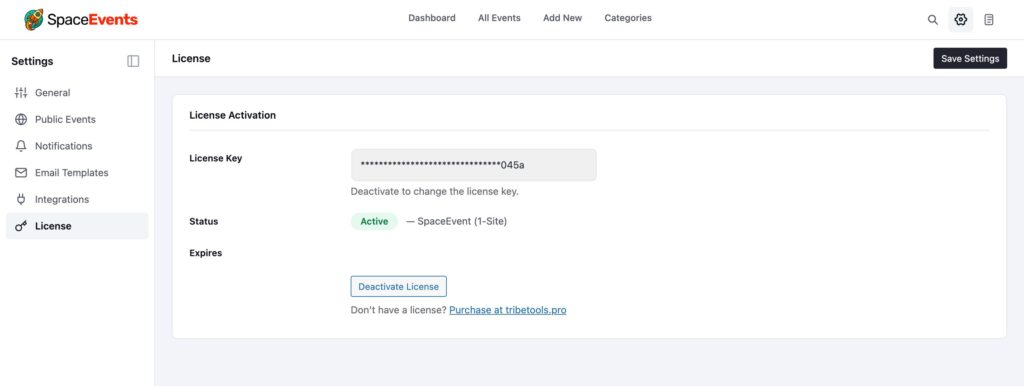
Step 3: Confirm activation #
You should see a green confirmation message indicating your licence is active, along with the licence type (Single Site, Multi-Site, or Agency) and expiry date.
3. Where Is My Licence Key? #
Your licence key can be found in the following places:
- Purchase confirmation email from SpaceAddons (check your inbox and spam folder).
- Your SpaceAddons account at tribetools.pro — log in and navigate to My Account > Licences.
- Your original purchase receipt (if purchased via a third-party marketplace).


