

bbp-migrate is a free one-click migration tool that moves your bbPress forums, topics, replies and members into FluentCommunity. No coding required, no data loss, no drama.
What gets migrated
Not migrated: topic subscriptions (FluentCommunity’s notification system works differently — users can follow content in FC after migration), forum/topic icons, spam and trash content, sub-forum hierarchy (FC does not support nested Spaces), and multi-site setups.
Requirements
⚠️ Important — please read before migrating
This plugin moves your forum content from bbPress into FluentCommunity. This process cannot be automatically undone.
We strongly recommend testing on a staging site first and taking a full site backup before running the migration on your live site.
Before You Migrate
A little preparation now will make everything go smoothly.
1. Back up your site
Take a full backup of your WordPress site including the database and all files. Most hosting providers offer a one-click backup from their control panel. Plugins such as UpdraftPlus or All-in-One WP Migration can also help.
Minimum requirement: a full database backup.
We strongly recommend testing on a staging copy of your site before running on your live site.
Tip: If you use FluentSMTP, enable Email Simulation mode before testing — this prevents emails being sent to your users during test runs. Alternatively use one of the free Disable Emails plugins.
2. Set up FluentCommunity
Install and activate FluentCommunity on your site if you have not already.
Do not create any Spaces before running the migration — bbp-migrate creates Spaces automatically from your bbPress forums.
Before migrating, configure your FluentCommunity settings:
- Go to FluentCommunity → Settings in your WordPress dashboard
- Set up your portal page and URL (e.g.
yoursite.com/community) - Set your community name and logo
- Configure your default notification and privacy settings
If you know which Space Groups you want, set them up now under FluentCommunity → Settings → Space Groups. You can assign forums to groups during the migration.
3. Review your bbPress forums
Sub-forums will be flattened. FluentCommunity does not support nested Spaces. Sub-forums become their own top-level Spaces, with the parent forum name noted in the description.
Topic tags have a 20-tag limit per Space. FluentCommunity limits each Space to 20 Topics. The migration selects the 20 most-used tags per forum. Review your tags under Forums → Topic Tags and consolidate rarely-used ones before migrating.
Deal with spam. Spam topics and replies will not be migrated but will appear in the content counts. Clear spam in bbPress first for accurate counts.
4. Decide what to do with anonymous content
bbPress allows posts without a WordPress account. FluentCommunity requires every post to have a user. You have two options:
Option A — Skip anonymous content. Leave the anonymous user field blank. Anonymous topics and replies will be skipped and listed in the migration summary.
Option B — Assign to a fallback user. We recommend creating a dedicated WordPress user (e.g. “Forum Archive”) for this purpose rather than using your admin account.
To set up a fallback user: create the user in WordPress, set their role to Subscriber, then log in as that user and visit your FluentCommunity portal once to create their FC profile. Log back in as admin and run the migration.
By default, migrated anonymous content is marked with “[Originally posted anonymously]” so readers know it was not written by the fallback user. You can change this marker text — or remove it entirely — in the Configure step.
5. Check your WordPress users
Deleted users: Content posted by deleted WordPress users will be treated as anonymous. Decide in advance whether to assign it to a fallback user or skip it.
BuddyPress or BuddyBoss: If your site uses BuddyPress or BuddyBoss alongside bbPress, run FluentCommunity’s built-in BuddyPress importer first, before running bbp-migrate.
Running the Migration
Installing the plugin
- Download bbp-migrate free from tribetools.pro
- In WordPress go to Plugins → Add New → Upload Plugin
- Upload the bbp-migrate zip file and click Install Now
- Click Activate Plugin
- Go to Tools → bbPress Migration
Step 1 — Pre-flight Check
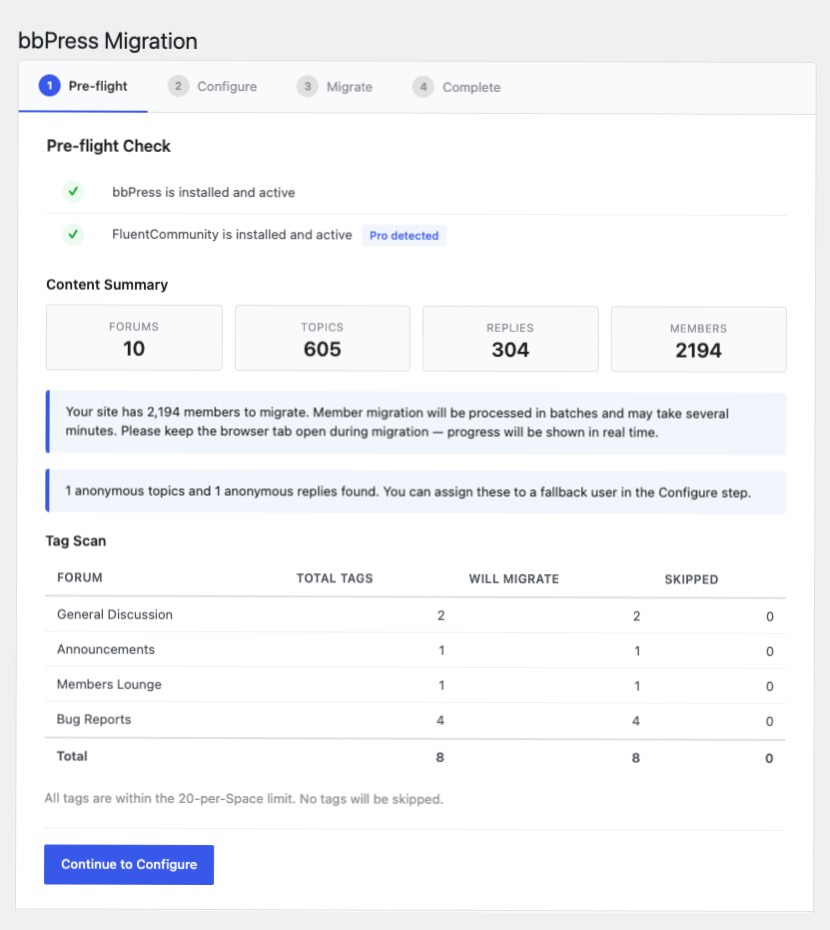
The Pre-flight screen confirms bbPress and FluentCommunity are both active and shows a summary of your content — forums, topics, replies, members and anonymous items.
Review the tag scan results. If any forum has more than 20 tags, consider consolidating them in bbPress before continuing.
Click Continue to Configure when ready.
Step 2 — Configure
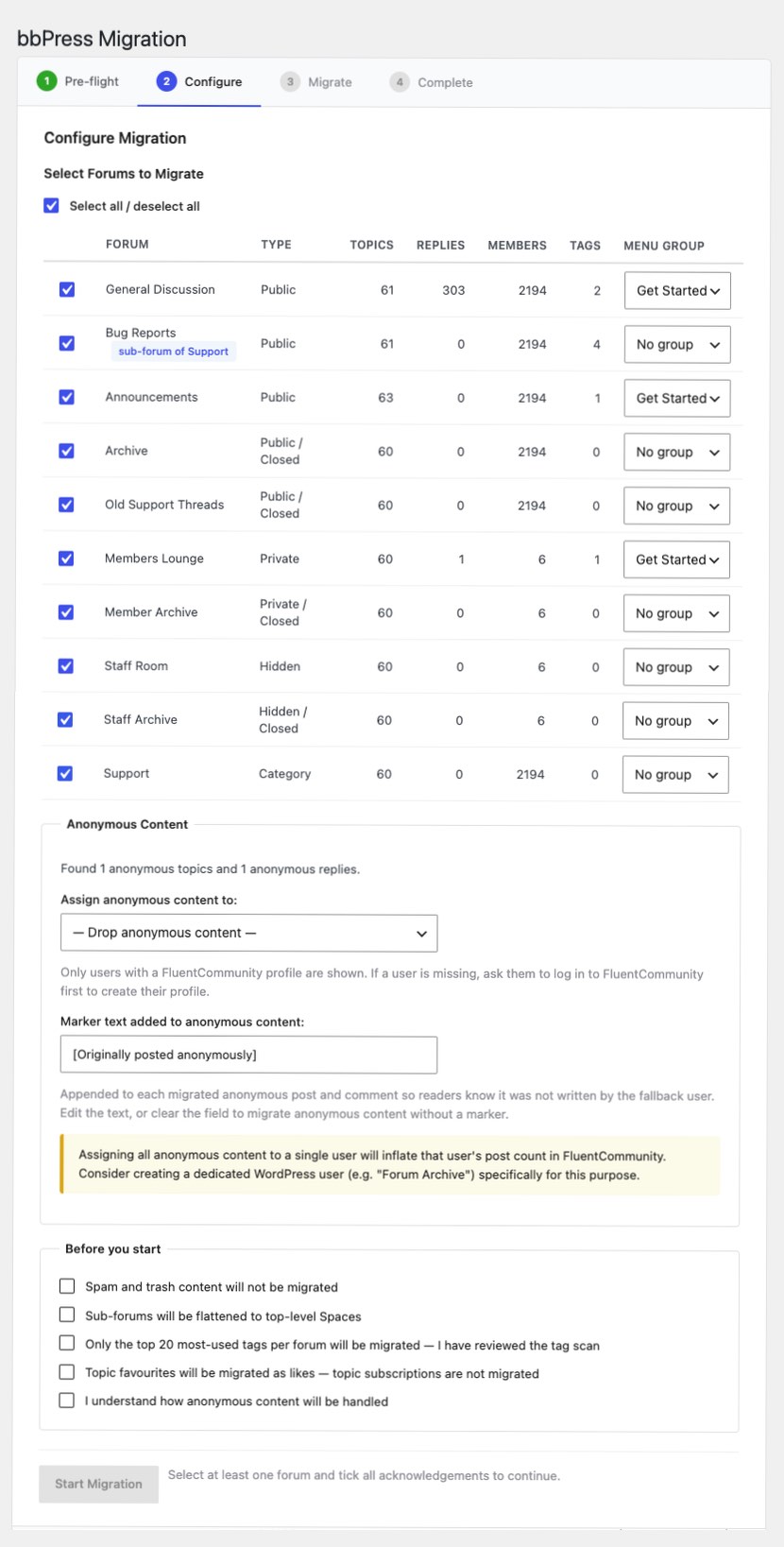
Select forums to migrate. All forums are checked by default. Uncheck any you do not want to migrate.
Assign Space Groups. Use the dropdown on each forum row to assign it to an FC Space Group, or leave as No group.
Handle anonymous content. Choose a fallback user or leave blank to skip anonymous content. You can also edit the marker text appended to anonymous posts, or clear it to add no marker.
Tick the acknowledgement checkboxes to confirm you understand how the migration handles sub-forum flattening, tag limits and topic favourites.
Click Start Migration when you are ready.
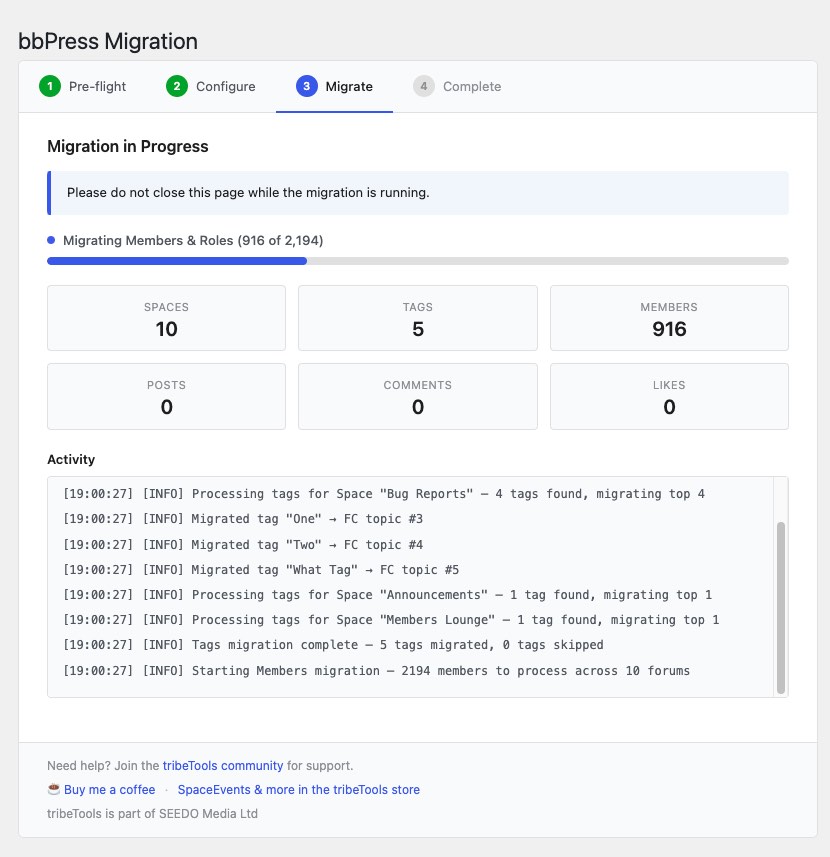
Step 3 — Migration in progress
The migration runs through your content in stages:
- Spaces — creates a FluentCommunity Space for each selected forum
- Tags — migrates your most-used topic tags (up to 20 per Space)
- Members — adds users to the correct Spaces with their roles and creates their community profiles
- Posts — migrates topics into FC posts
- Comments — migrates replies into FC comments
- Likes — converts topic favourites into post likes
- Repair — recalculates bbPress and FluentCommunity counts
Content is processed in batches with live progress and an activity log.
- Do not close your browser tab while the migration is running.
- Do not edit bbPress content while the migration is running.
- If the migration appears to stall, the tool will detect this and offer a Resume or Reset option.
- Depending on your content volume, migration may take anywhere from a few seconds to several minutes.
Step 4 — Complete
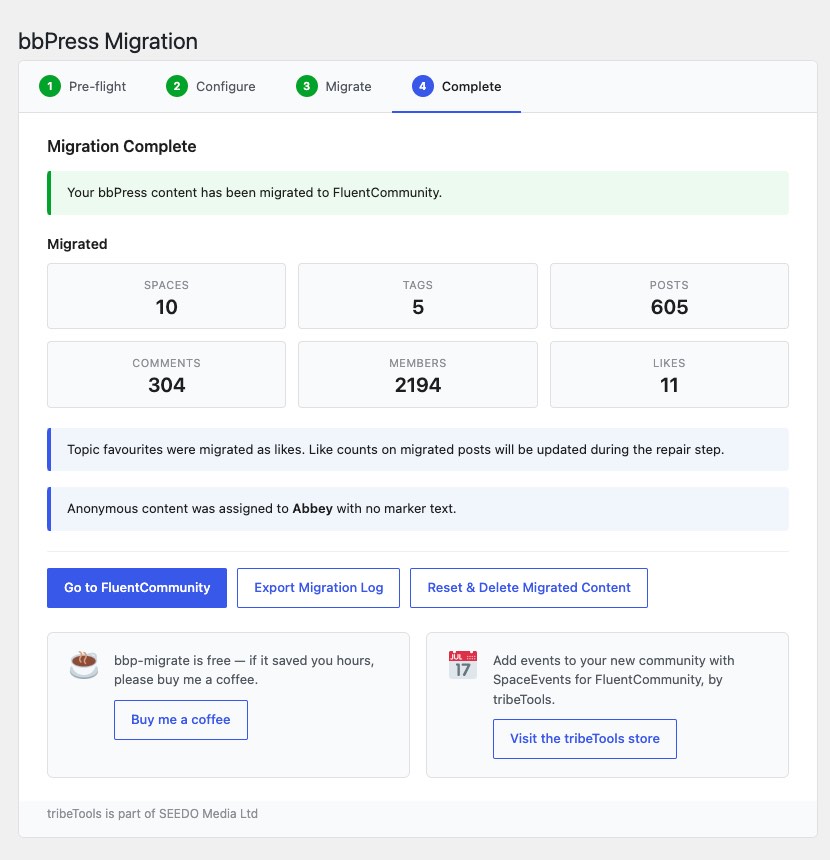
When migration finishes you will see a summary showing how many Spaces, posts, comments, members and likes were migrated, plus any skipped or excluded content.
Download the migration log — this is a full audit trail you can keep for your records or use for debugging.
After the Migration
Review your migrated content
- Visit your FluentCommunity portal and check your new Spaces
- Verify privacy settings — private and hidden forums should be private or secret Spaces
- Check Space Topics (tags) are correct for each Space
- If you used a fallback user for anonymous content, review their posts and update as needed
- Check that Space moderators and admins are correctly assigned
Set up URL redirects
bbPress and FluentCommunity use different URL structures, so old bbPress topic URLs (e.g. yoursite.com/forums/topic/my-topic/) will not automatically redirect to the new FC URLs. If your forum content appears in search engines, broken links can affect your search rankings.
To make this easier, bbp-migrate keeps the original bbPress permalink slug on each migrated post — so my-topic in bbPress becomes /portal/space/{space}/post/my-topic in FluentCommunity, and redirect rules can map old URLs to new ones one-to-one.
Setting up the redirects themselves is outside the scope of bbp-migrate. We recommend a redirect plugin such as Redirection.
Tidy the sidebar (optional)
If your migrated Spaces make the FluentCommunity sidebar feel long, enable Collapse groups by default in FluentCommunity’s settings — all Space Groups start collapsed and users can expand them as needed.
Deactivate bbPress
Once you are happy with the migration, deactivate bbPress from Plugins → Installed Plugins. Do not uninstall it straight away — keep it available for a few weeks in case you need to reference your original forum data.
Resetting and Re-running
If you need to re-run the migration — for example after adjusting your bbPress tags or forum structure — use the Reset & Delete Migrated Content button on the completion screen.
⚠️ Important
This will delete all FluentCommunity content created by the migration (Spaces, posts, comments, memberships). It will NOT affect your bbPress data.
If you run the migration twice without resetting first, you will end up with duplicate content in FluentCommunity.
Frequently Asked Questions
Will this delete my bbPress data?
No. bbp-migrate only creates new content in FluentCommunity. Your bbPress forums, topics and replies are never modified or deleted.
Can I run the migration more than once?
Yes, but use the Reset & Delete Migrated Content button between runs. Running twice without resetting will create duplicate content.
Do I need FluentCommunity Pro?
No — the migration works with the free version. However topic tag migration requires FluentCommunity Pro. Without Pro, tags are skipped and noted in the migration summary.
What happens to sub-forums?
Sub-forums are flattened to top-level Spaces. The parent forum name is added to the Space description so you know where it came from.
What happens to anonymous posts?
Anonymous posts can be assigned to a fallback WordPress user you choose during setup. If no fallback is selected, anonymous content is skipped and listed in the migration summary. Migrated anonymous content is marked with “[Originally posted anonymously]” by default — the marker text can be changed or removed in the Configure step.
What about topic subscriptions and favourites?
bbPress topic favourites are migrated as FluentCommunity post likes. Topic subscriptions (notification preferences) are not migrated because FluentCommunity’s notification system works differently — users can follow content in FC after migration.
The migration seems stuck — what do I do?
If the migration stalls, the tool will show a warning after a few minutes. Click Resume to continue from where it left off, or Full Reset to start again. Check wp-content/debug.log for error details.
I closed the browser tab — is my migration lost?
No. The migration tool detects that a previous migration was in progress and offers to resume from where it left off.
Will my SEO be affected?
Old forum URLs will no longer work after migration, but migrated posts keep their original bbPress permalink slug so redirect rules map one-to-one. Set up URL redirects using a plugin like Redirection — redirects are not created automatically by bbp-migrate.
What happens to bbPress user roles?
Keymasters become Space admins, Moderators become Space moderators, and Participants/Subscribers become Space members.
Support
Need help? Join the tribeTools community at tribetools.pro where you can ask questions, report issues and connect with other FluentCommunity users. When you download bbp-migrate you are automatically added to the tribeTools community for support and updates.
bbp-migrate is free — if it saved you hours, please buy me a coffee ☕
Changelog
= 1.0.3 =
- Fix line breaks and clickable links in migrated posts and comments
- Preserve bbPress permalink slugs on migrated posts for one-to-one URL redirects
- Configurable anonymous content marker text (edit or remove in the Configure step)
- Documentation updates: profile creation, slug preservation, marker option
= 1.0.2 =
- Fix blank page on large sites (optimised preflight queries for 100+ forums)
- Much faster member migration on large sites (batched processing, each user handled once)
- Fix member counts on the Configure screen to include subscribers and moderators
- FluentCommunity user profiles now created during member migration so migrated posts, comments and members appear correctly in the portal
- Remove redundant profile re-sync from the repair stage (~40% faster overall)
= 1.0.1 =
- Replace bookmark migration with likes (topic favourites → post likes)
- Add pulsing activity indicator to progress screen
- Add migration stages overview to readme
- FC compatibility verified against latest FluentCommunity update
= 1.0.0 =
- Initial release